Right click to copy any file as markdown on Mac
One underrated side effect of the AI revolution — everyone’s finally using Markdown! I find myself often converting files to Markdown for use in AI prompts (ChatGPT and Claude let you upload files, but you can’t do that running Ollama locally & on many other chat platforms), so manual markdown conversion is still useful.
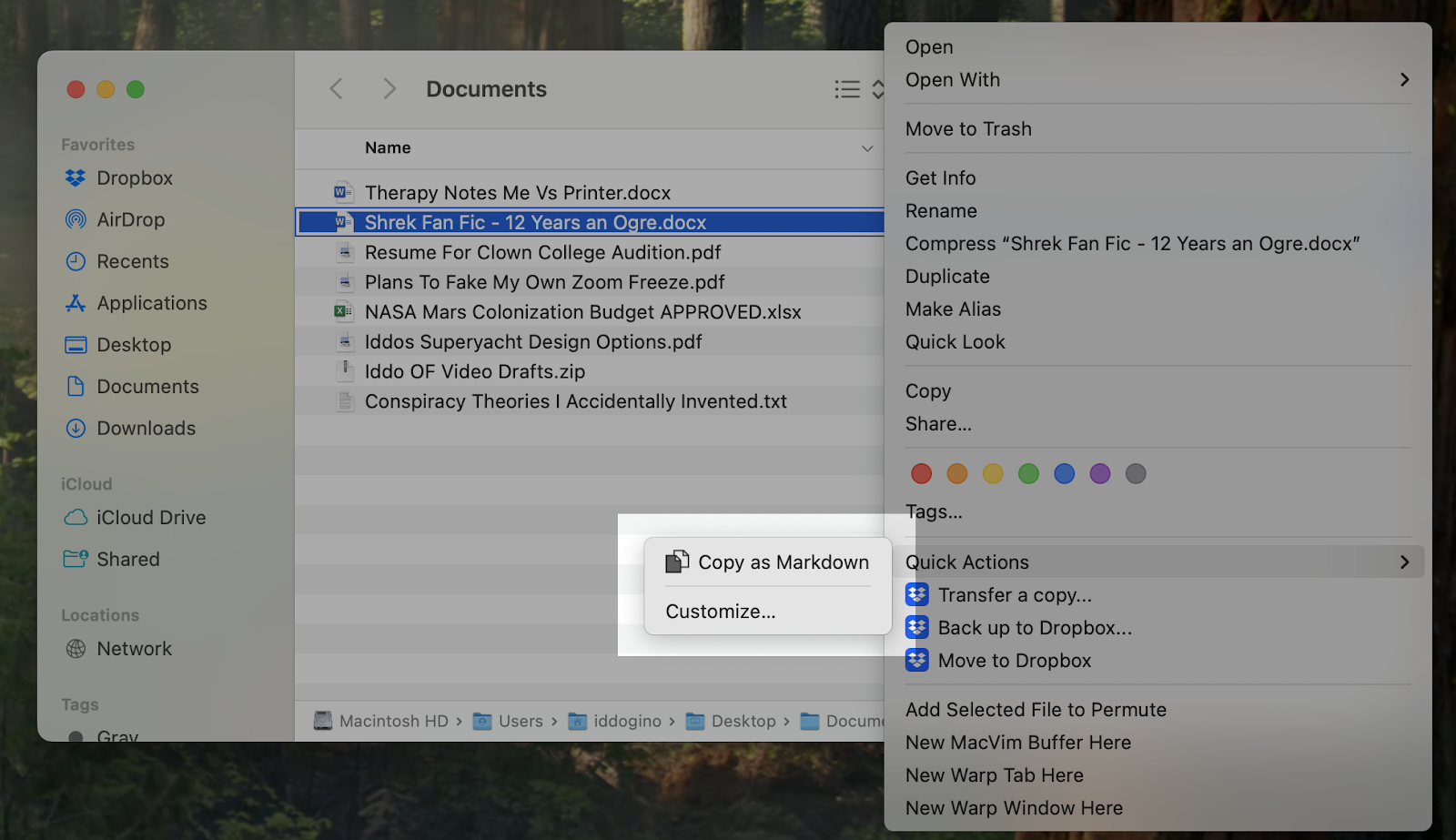
My go-to is the markitdown utility from Microsoft, which is great for almost everything (PDFs, Office docs, even ZIPs). But I wish it was even quicker. What if I could right click on any file in Finder and just copy it as markdown? Someone has to build it. I already had Xcode booting up and I remembered Automator. Surely this should be an automatorable task, right? Heck yeah!
A few short minutes later – I can now copy almost any file on my computer as markdown — just as god intended. Add it to your Mac yourself below:
Pre-requisite — install Markitdown
See here for installation instructions: github.com/microsoft/markitdown#installation
Now to Automator
You can skip the next part and just download the Automator quick action I created here: dropbox.com/t/UjvXmFmte6EZVLwj
If you are curious, want to build it yourself, or just don’t trust unsigned Mac automations from random people on the internet (smart!), just do it yourself:
- Open Automator
- New > Quick Action
- On the top configure:
- Workflow receives current: files or folders
- Image: whatever you want the icon to be
- Look for the “Run Shell Script” action and drag it in
- Configure the shell script:
- Shell:
/bin/bash - Pass Input: as arguments
- Shell:
- Paste the code below (make sure to double check your markitdown install location with
which markitdownin the second to last line) - Save it — the name you save it as is how it’ll appear in the right click menu
Easy — now you can right click on any file and copy it as markdown!
Code:
#!/bin/bash

osascript -e 'display notification "Converting to Markdown..." with title "MarkItDown"'

for f in "$@"
do
  # Extract filename and directory
  filename=$(basename "$f")
  dirname=$(dirname "$f")
  name="${filename%.*}"

  # Set output path
  output="$dirname/$name.md"

  # Run markitdown
  /opt/homebrew/bin/markitdown "$f" | pbcopy
done
Sidenotes
- If you are curious, Quick Action automations on Mac are stored in
~/Library/Services. There doesn’t seem to be a way to see all currently active Quick Actions in the Automator app — you have to open that folder and see them there. - It seems that the bash used for running shell scripts in Automator is different / limited, and I couldn’t get the search path to work in it. So I had to put the direct path to the installed Markitdown instance in the script. Use
which markitdownto find its install path. - Markitdown can take a few seconds/minutes to run on larger files. I tried to add a notification when it starts / finishes but couldn’t get notifications working properly inside Automator. It does show a spinning gear on the toolbar.